Schematic (electronics)
A schematic is an electronics circuit: parts from a library, wires between their pins, and nets. It can be simulated live, with parts that animate, firmware running on boards, and charts of voltages and currents.
Layout
- Left: the tools Select and Component.
- Canvas: the circuit, with the Simulate button and, while simulating, the playback bar.
- Right: the tabs AI, Analysis, Properties and Measure.
- Menu bar: File, Edit, View, Help.
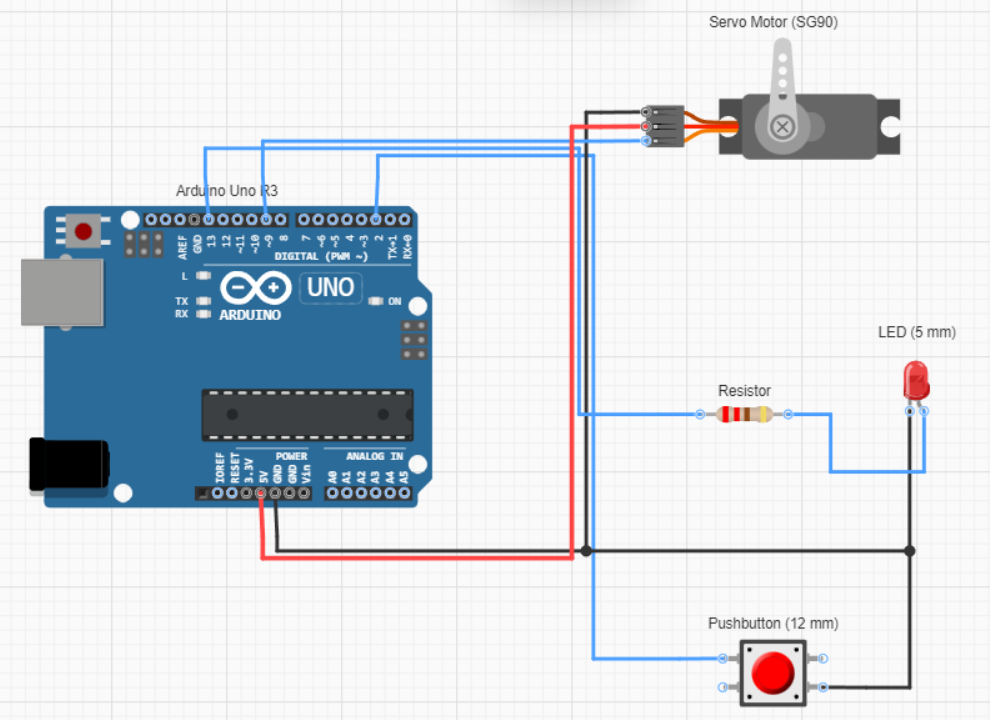
There is no PCB layout editor. For a PCB, export the schematic to KiCad and lay it out there, see Export.
Menus and shortcuts
On a Mac, Ctrl in these shortcuts is ⌘. Exports are explained in Export.
| Menu | Item | Shortcut | What it does |
|---|---|---|---|
| File | New | Ctrl+N | Creates a new schematic in this project. |
| Open | Ctrl+O | Opens another schematic. | |
| Save | Ctrl+S | Saves the schematic. | |
| Save As… | Ctrl+Shift+S | Saves a copy under a new name and opens it. | |
| Save a Copy… | Saves a copy under a new name and stays on this one. | ||
| Export → Export PNG… | Saves an image of the circuit. | ||
| Export → Export KiCad… | Exports the circuit as a KiCad project for PCB layout. | ||
| Close | Goes back to the project page. | ||
| Edit | Undo | Ctrl+Z | Undoes the last edit. |
| Redo | Ctrl+Shift+Z | Redoes the edit you undid. | |
| Cut | Ctrl+X | Cuts the selection. | |
| Copy | Ctrl+C | Copies the selection. | |
| Paste | Ctrl+V | Pastes at the cursor. | |
| Paste in Place | Ctrl+Shift+V | Pastes at the copied position. | |
| Duplicate | Ctrl+D | Copies the selection next to itself. | |
| Delete | Del | Deletes the selection. | |
| Select All | Ctrl+A | Selects every part and wire. | |
| Select None | Esc | Clears the selection. | |
| View | Zoom In | Ctrl+= | Zooms in. |
| Zoom Out | Ctrl+- | Zooms out. | |
| Reset Zoom | Ctrl+0 | Goes back to 100 percent. | |
| Recenter View | Ctrl+Shift+0 | Fits the whole circuit in the view. | |
| Help | Contact Us | Opens a short form to message the team. | |
| Terms of Service | Opens the terms in a new tab. | ||
| Privacy Policy | Opens the privacy policy in a new tab. | ||
| Discord Community | Opens the FloMotion Discord server. | ||
| Reddit (r/FloMotion) | Opens the FloMotion subreddit. |
Right-click on the canvas shows the Edit items. On a net, a part or a sheet it adds the first three:
- Open inner schematic: On a part that is itself a schematic: opens it.
- Show as labeled / Show as wired: On a net: draws it as named labels instead of wires, or as wires again.
- Reload from library: On a library part: updates it to the latest library version.
- Undo (Ctrl+Z): Undoes the last edit.
- Redo (Ctrl+Shift+Z): Redoes the edit you undid.
- Cut (Ctrl+X): Cuts the selection.
- Copy (Ctrl+C): Copies the selection.
- Paste (Ctrl+V): Pastes at the cursor.
- Paste in Place (Ctrl+Shift+V): Pastes at the copied position.
- Duplicate (Ctrl+D): Copies the selection next to itself.
- Delete (Del): Deletes the selection.
- Select All (Ctrl+A): Selects every part and wire.
- Select None (Esc): Clears the selection.
Toolbars
Left tools: Select and Component, see Editing the circuit.
View toolbar:
| Button | What it does |
|---|---|
| Part names | Shows or hides part names on the canvas. |
Canvas: Simulate (once the circuit has a part), and the playback bar while simulating, see Simulation. The zoom control in the bottom right corner: zoom out, the zoom level, zoom in, and reset.
Right tabs: AI (chat), Analysis, Properties and Measure.