AI chat
The AI panel on the right of every page is the chat with the agent. On a project page and in every editor it is the same panel; on a phone it is the AI tab at the bottom. The agent works on whatever is open: a 3D workspace, a schematic, firmware, a scene, or the project itself.
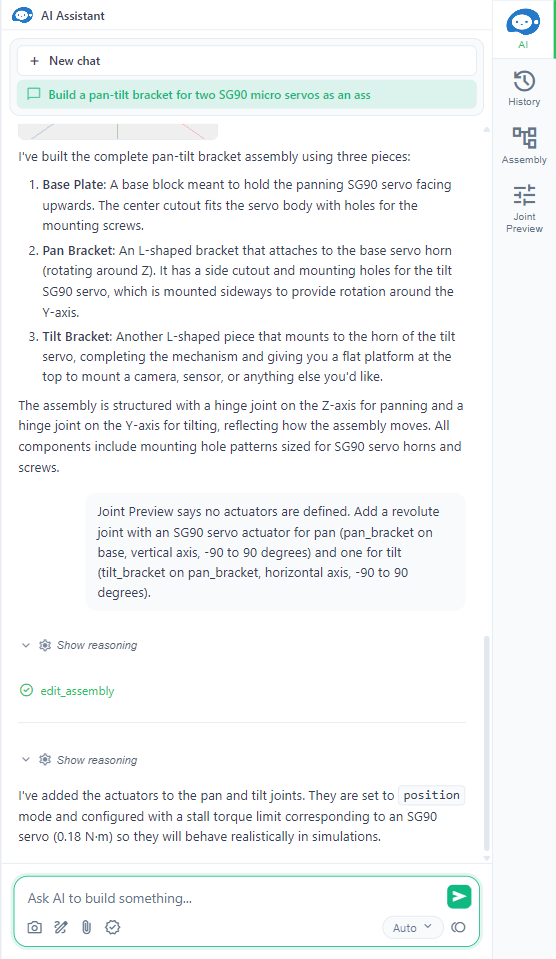
The panel
From top to bottom:
- Header: "AI Assistant". When the agent has loaded a specialised skill (simulation, measurements, CAM, robots and others), its name shows as a chip here.
- Banners: as a guest, "Sign up for additional free agent use". The strip "Use Claude Code, Codex or Cursor with the same tools" leads to the desktop app; the cross hides it.
- Chat tabs: New chat and one tab per earlier chat.
- Conversation: your messages and the agent's replies, its reasoning, and a card for every action it runs.
- Message box with its toolbar.
Chats
New chat starts a fresh conversation; click a tab to go back to an earlier one. Chats belong to the project, not to one item: the same tabs show in every editor of the project, and a chat continues when the agent opens another item. The agent remembers what was said in the open chat, not in the others. More in What the agent knows.
An empty chat shows "Ask AI anything" and a hint for the editor, for example "Describe a part or assembly, the AI will generate 3D CAD models".
Writing a message
Type in the box ("Ask AI to build something...") and press Send or Enter. Shift+Enter starts a new line.
While the agent works, three dots pulse under its reply and Send turns into Stop. Stop ends the turn and the reply shows "Stopped". What the agent already changed stays; in a workspace, History rolls it back.
If a long turn takes a while, the chat says "Response may take a few minutes. Keep this tab open to stay connected." If a message cannot be sent, Retry sends it again.
Work in steps. The agent builds a robot or a circuit much better one part or one block at a time than in one request.
Reasoning
While the agent thinks, a live Thinking… box streams its reasoning. When it is done the box folds into Show reasoning; click it to read it again.
Attachments
The toolbar under the message box:
| Button | What it does |
|---|---|
| Camera (Attach screenshot) | Attaches the current view as it is. In workspaces and schematics. |
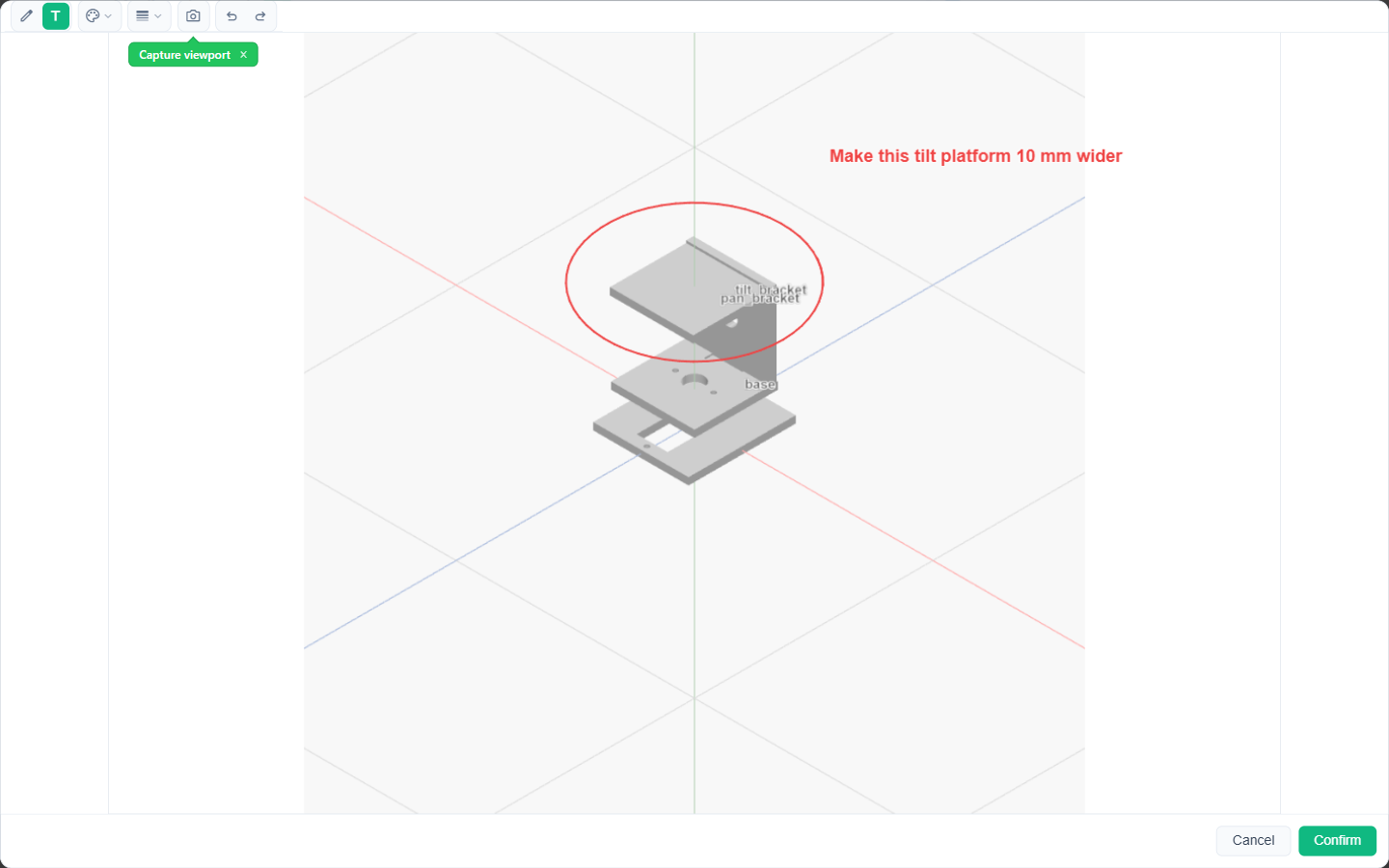
| Pen (Sketch) | Captures the view and opens a drawing editor to mark it up. |
| Paperclip (Attach file) | Images, PDFs such as datasheets, text and CSV files, and short videos. |
Attached files show above the box until you send. Images in the conversation open full size when clicked.
The Sketch editor has Pen and Text, a colour (red, orange, green, blue, black, white), a line width (thin, medium, thick), Capture viewport to grab the view again, Undo, Redo and Confirm. Circling a part and writing what should change is often the clearest request.
A video of a person moving can become a robot motion, see Motions and training.
Model
The chip at the right of the toolbar picks the AI model. Auto picks a suitable model for the editor. The chip's menu ends with Credit details, the credits page with what each model and editor costs.
Approvals
In a workspace or a scene, the shield button (Require approval for AI actions) makes the agent stop before each change. A bar then shows "Action awaiting approval" with Approve and Reject (or "3 actions awaiting approval" with Approve all and Reject all). See Actions and results.
Credits
The coin button at the far right shows the balance; click it for the Credits panel. When credits run out, the message box is replaced by "You've used all your credits." with Subscribe (or Upgrade plan) and View credit details; a guest sees a sign-up prompt instead. See Credits.
In a region where the assistant is not offered, the panel says "AI assistant is currently unavailable in your region."