Projects
Work lives in projects. My projects lists them; a project's page lists its items; each item opens in its editor.
My projects
My projects (/projects, also in the avatar menu) lists your projects with the date each was last changed.
- New Project adds a row with a name field, filled with "Untitled Project": change it and press Enter to create the project and open it (Esc cancels).
- Click a project to open it.
- Each row has a pencil to rename it in place and a bin to delete it; deleting asks you to confirm on the row.
- Browse robots opens the robot wall.
With no projects yet, the list says "No projects yet. Create your first one!". If the list cannot load, Retry loads it again.
The project page
The header shows Projects (back to the list), the project's name, the File and Help menus, and Share. Click the name to rename it; Enter saves, Esc cancels.
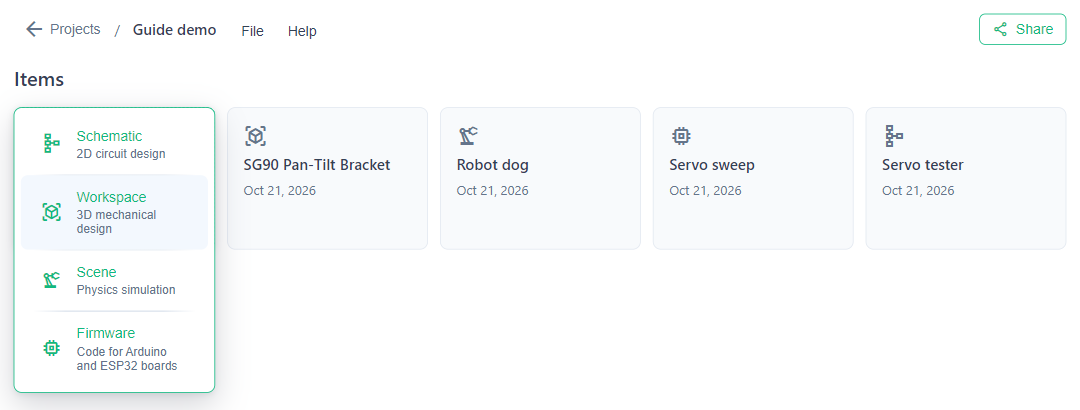
Under Items is a card for each item, with its icon, name and last change. Click a card to open its editor. Each card has a pencil (rename in place) and a bin (delete, with a confirm on the card).
The first card, New, adds an item:
| Item | Description on the menu | Editor |
|---|---|---|
| Schematic | 2D circuit design | Schematic |
| Workspace | 3D mechanical design | Workspace |
| Scene | Physics simulation | Scene |
| Firmware | Code for Arduino and ESP32 boards | Firmware |
A new card appears with a name field, filled with "Untitled Schematic" or similar; press Enter to create the item and open its editor. A new scene opens with a New scene dialog asking where its robot comes from, and an empty scene shows it again each time it opens: Empty, From project (a workspace of this project; with none, Create a workspace first), MuJoCo Menagerie or MJCF file.
Menus
| Menu | Item | Shortcut | What it does |
|---|---|---|---|
| File | Share… | Opens Share this project: a read-only link, or publishing as a robot. | |
| Rename | Renames the project. | ||
| Delete project | Deletes the project and all its items, after a confirmation. This cannot be undone. | ||
| Help | Contact Us | Opens a short form to message the team. | |
| Terms of Service | Opens the terms in a new tab. | ||
| Privacy Policy | Opens the privacy policy in a new tab. | ||
| Discord Community | Opens the FloMotion Discord server. | ||
| Reddit (r/FloMotion) | Opens the FloMotion subreddit. |
Delete project asks "Delete this project?": the project and everything in it is removed, and this cannot be undone. Share (the button) and File → Share… open the same dialog, see Sharing and forking.
The project chat
The AI tab on the right of My projects and of a project page is the chat. Here the agent manages the project: it creates and opens items for you. Click AI to fold the panel away or bring it back. On a phone, the page and the chat are tabs at the bottom.
Inside an item
Every editor's header shows the path back to the project, the item's name (click it to rename) and the menu bar. File → Close goes back to the project page. Each editor's menus are listed on its page: Workspace, Schematic, Firmware, Scene.
Someone else's project
A project shared with you by link opens read only, with Back to my projects and a bar to fork it. Its items open read only as well. See Sharing and forking.
A link to a project that was deleted, or that you cannot open, shows "Project not found" with Back to my projects.