User guide / Projects /
Sharing and forking
Share a project
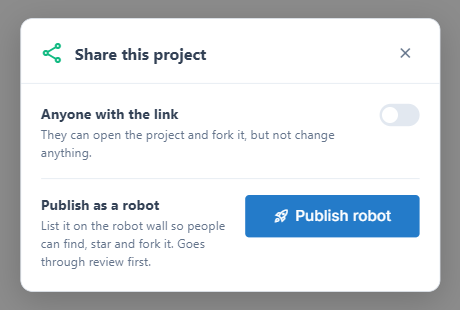
On the project page, File → Share… opens Share this project:
- Anyone with the link: turns on a read-only link, with Copy. People who open it can look around and fork the project, but not change anything.
- Publish as a robot: lists the project on the robot wall so people can find, star and fork it. A published robot goes through a review first.
Open a shared project
A shared project opens read only, with a banner saying so. You can explore the scene, move the camera and watch the simulation. To edit, click Fork to my projects: the fork becomes a project of yours with the assemblies, scenes and scripts copied.
Delete a project
File → Delete project on the project page, then confirm.