User guide / Schematic (electronics) /
Simulation
Start and stop
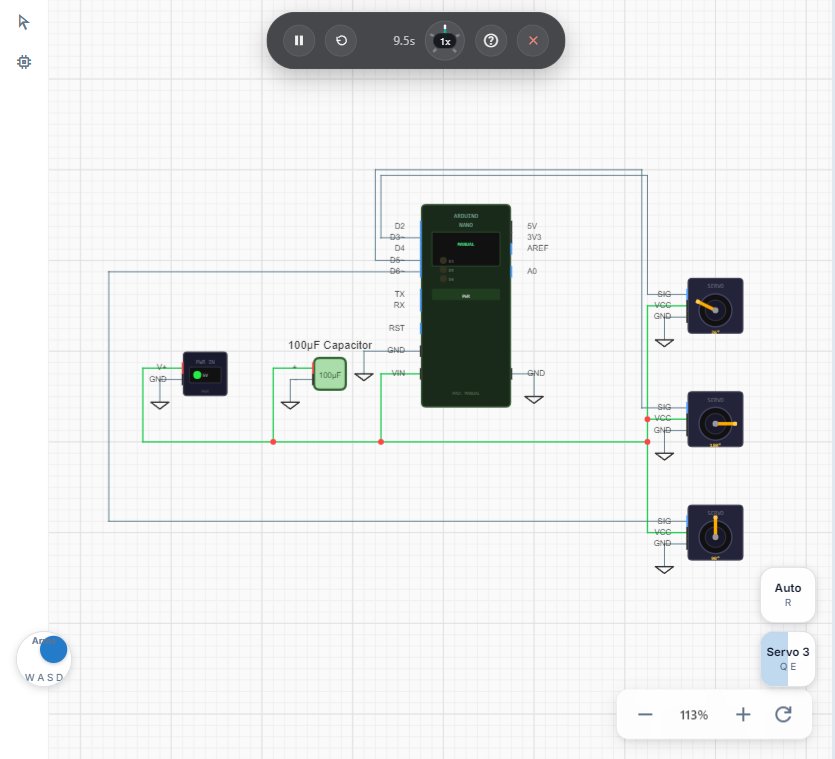
Click Simulate on the canvas. If the circuit is not ready to simulate, a strip says what is missing ("Needs sim setup") with Set up with AI, which asks the agent to prepare it.
While it runs, the playback bar has play and pause, restart, a speed control, How to use the simulator (the question mark) and Exit simulation.
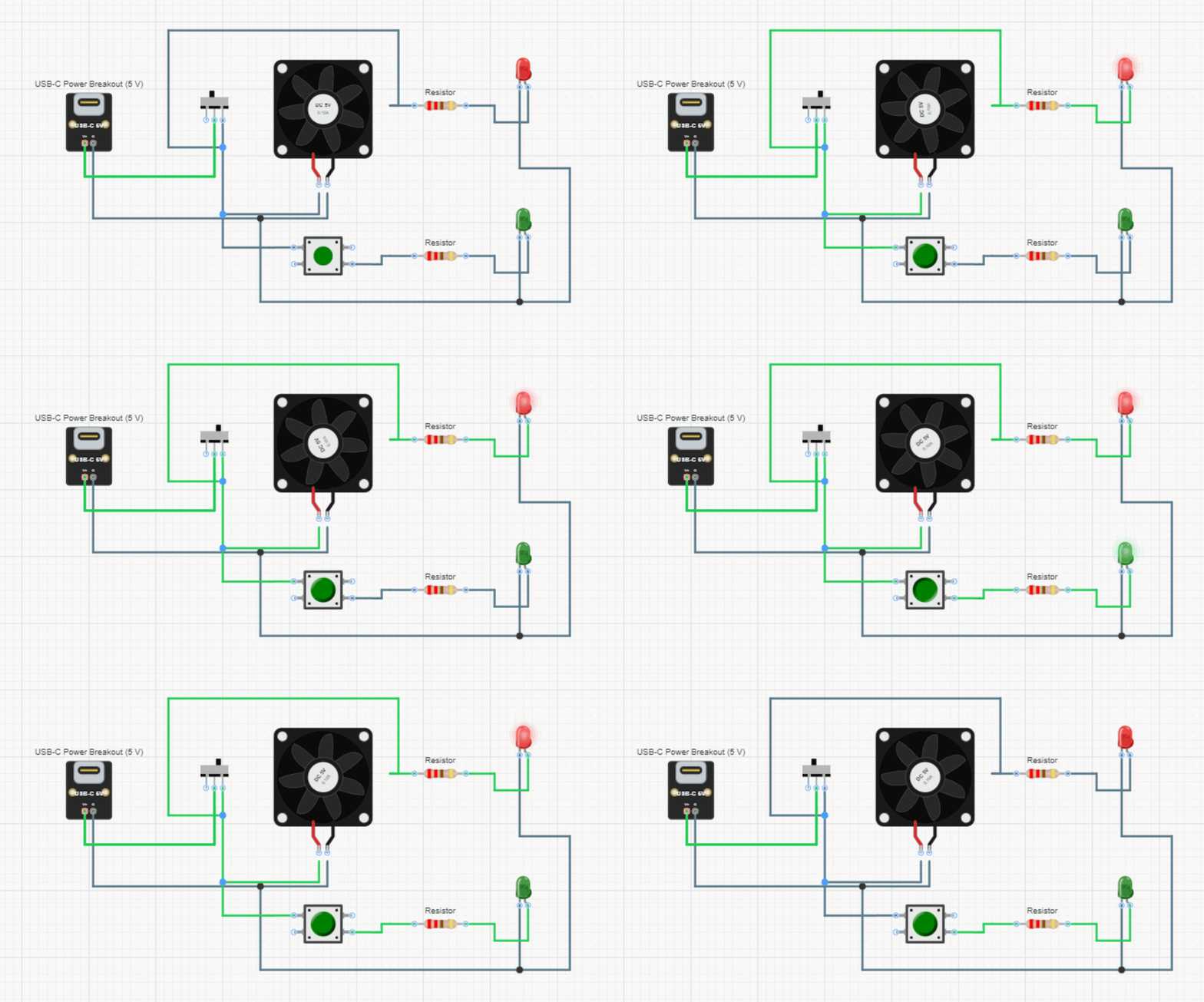
While it runs
- Tap a component: switches, buttons and other interactive parts respond while the simulation runs.
- Tap a wire: adds a voltage chart of that net in the Measure panel; tap again to remove it.
- Change speed: slow the run down to watch fast signals. Accuracy stays the same at every speed.
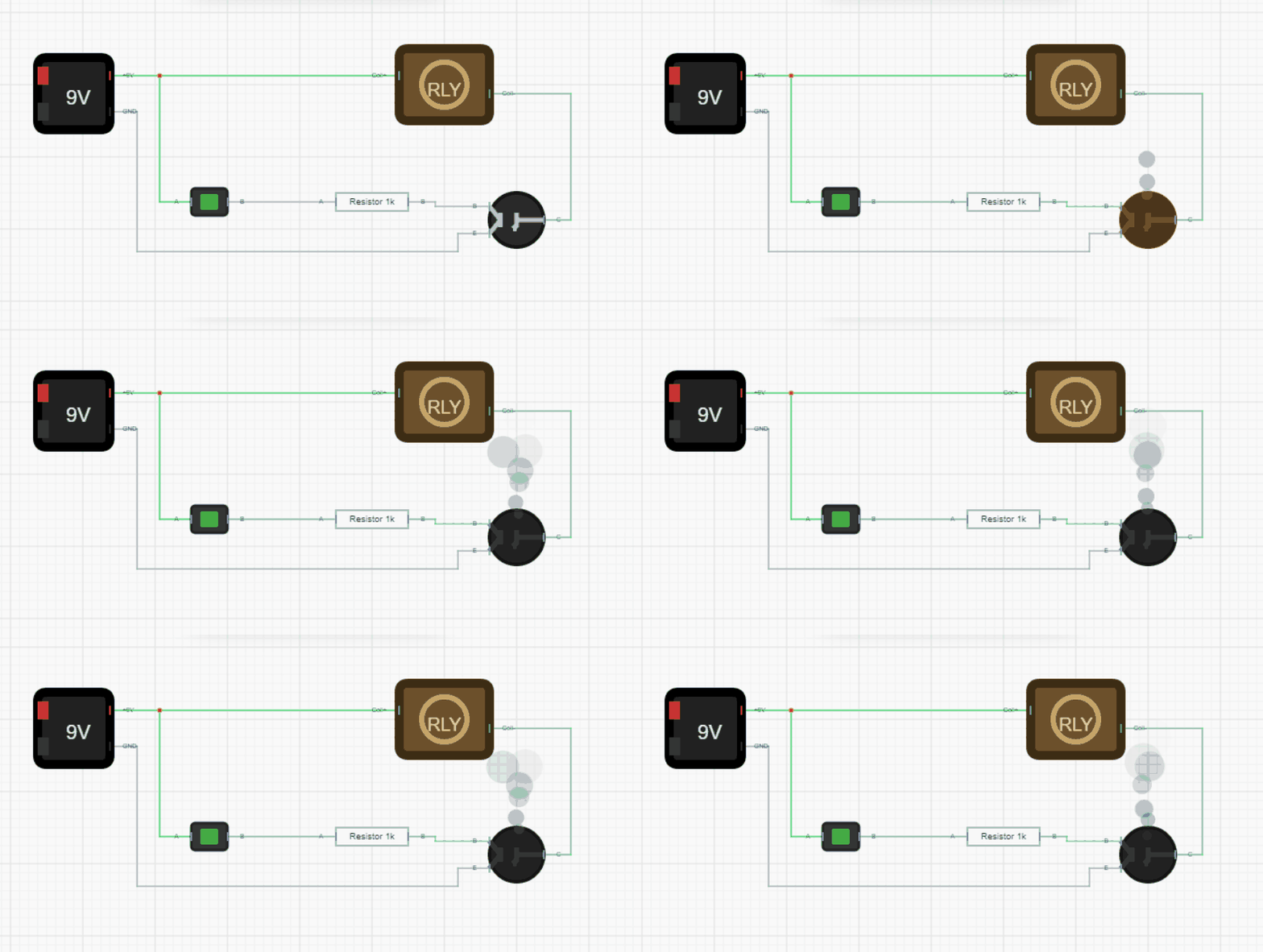
- Parts driven past their ratings burn out, as they would on the bench.
Boards and Serial
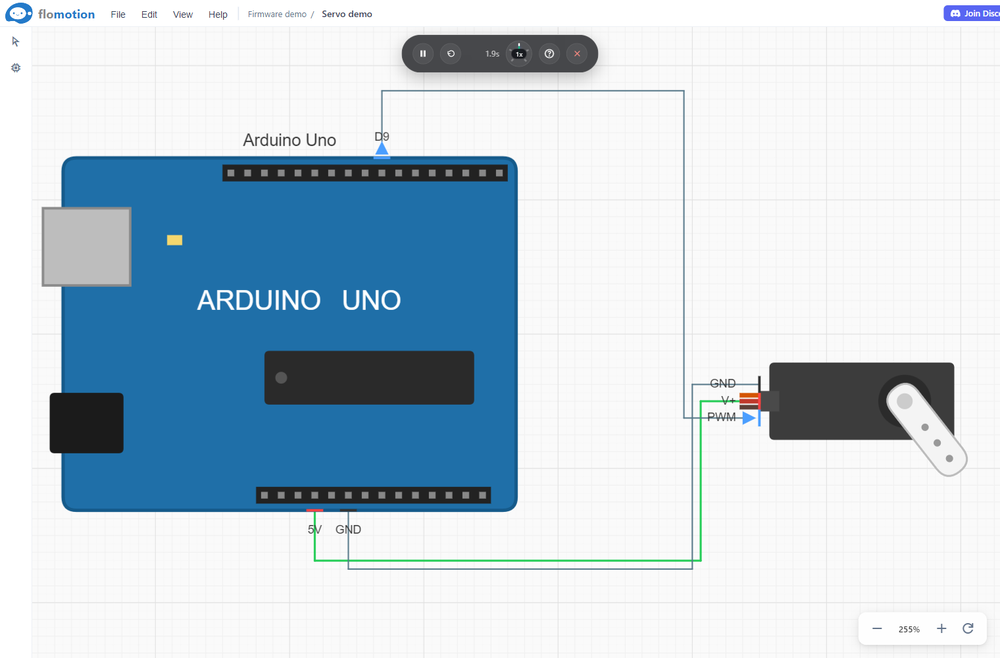
A board part with firmware attached runs its latest build. Serial shows what the board prints; type a line there and press send to write to the board.
Control pad
A schematic can have an on-screen control pad (buttons, toggles, joysticks, sliders, with key bindings) to drive the circuit. Ask the agent to add one.