User guide / Schematic (electronics) /
Editing the circuit
Tools
- Select: click a part to select it and drag to move it. Drag from one pin to another to draw a wire, or click one pin and then the other. Delete or Backspace removes the selection, Esc cancels a wire.
- Component: opens the Components panel, see Parts and components.
The view toolbar toggles Part names on the canvas.
Properties
Select a library part and open the Properties tab to change its values, for example a resistor's resistance or an LED's colour. Resistor colour bands follow the value.
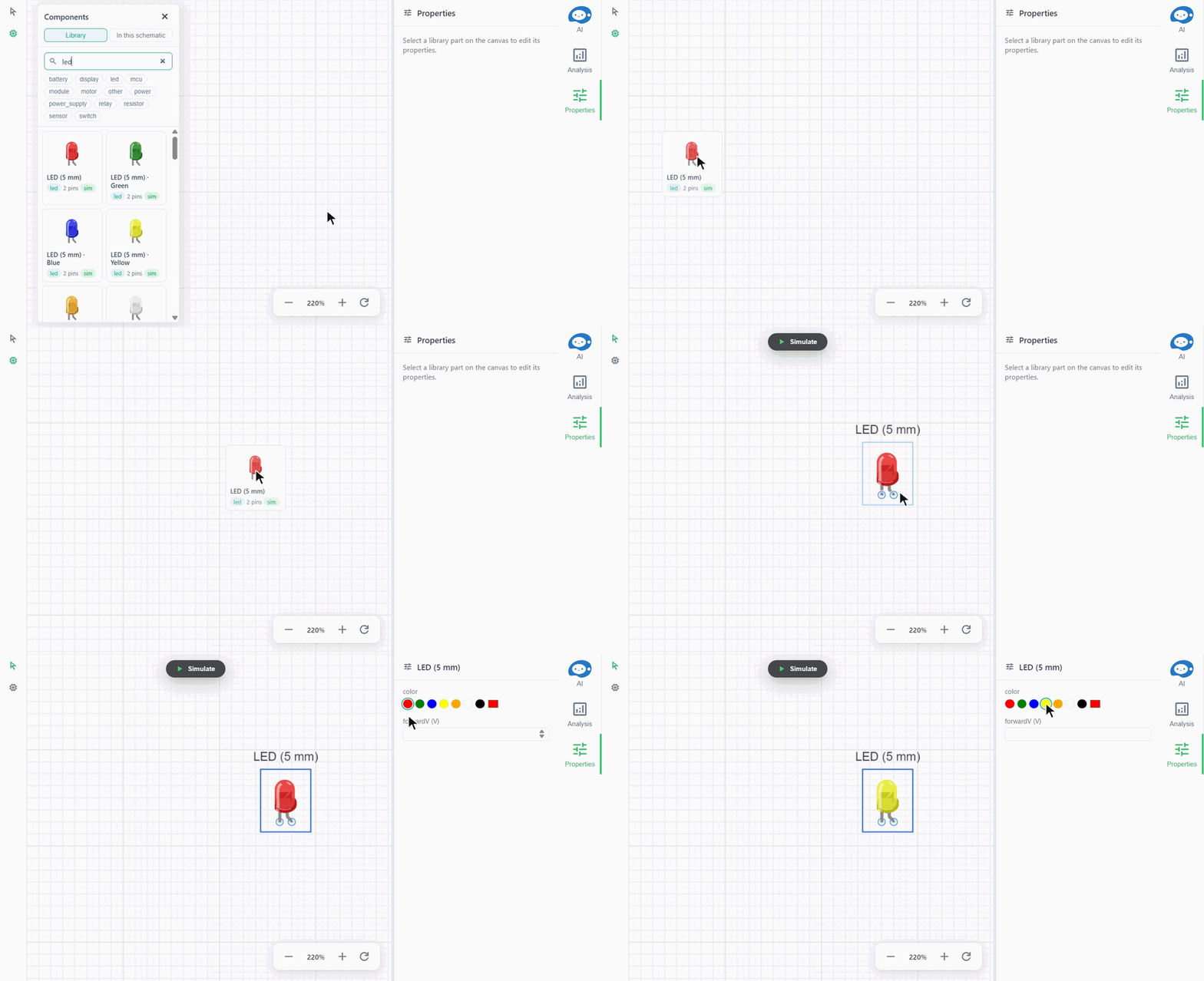
Right-click menu
On a part or a wire:
- Show as labeled / Show as wired: draws a net as named labels instead of wires, or back.
- Reload from library: updates a part to the library's latest version.
- Open inner schematic: for a part that is itself a schematic (a sheet), opens it.
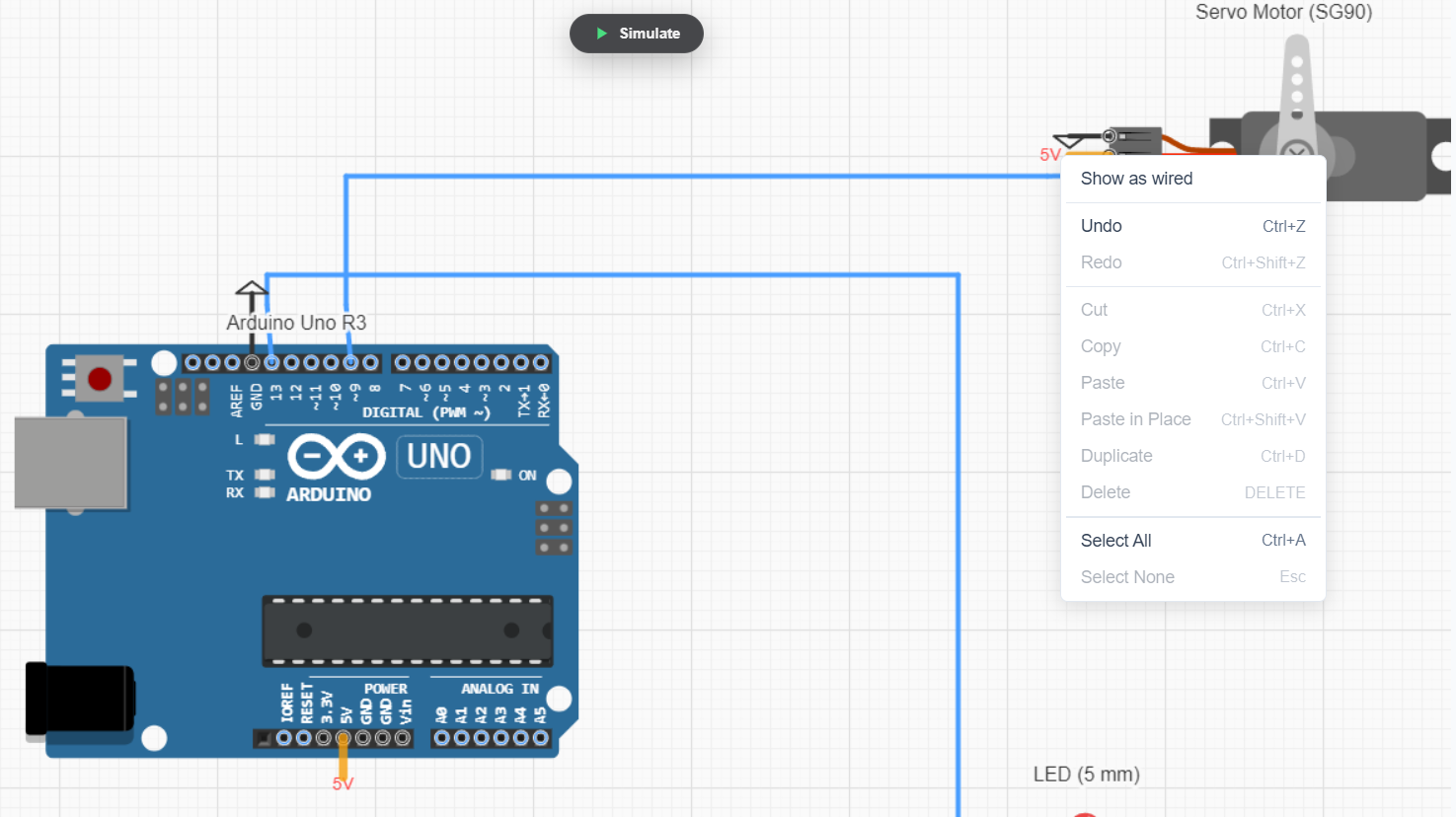
Menus
All menu items and their shortcuts are listed on the Schematic page.
Sheets
A schematic can be used as a part inside another schematic of the same project, so a large circuit can be split into sheets. Ask the agent to make a block into its own sheet.