Selecting and moving parts
Select and move
With Select, click a part to select it. Drag the handles that appear to move it; the Select options at the top left switch the handles between move and rotate (G moves, R rotates), and Move parent without children moves a sub-assembly's parent alone. An info box shows the part's position and size.
The Transform box under the Assembly tree sets exact values: Global, Local or Delta (relative to the current place), then Pos (position in mm) and Rot (rotation in degrees).
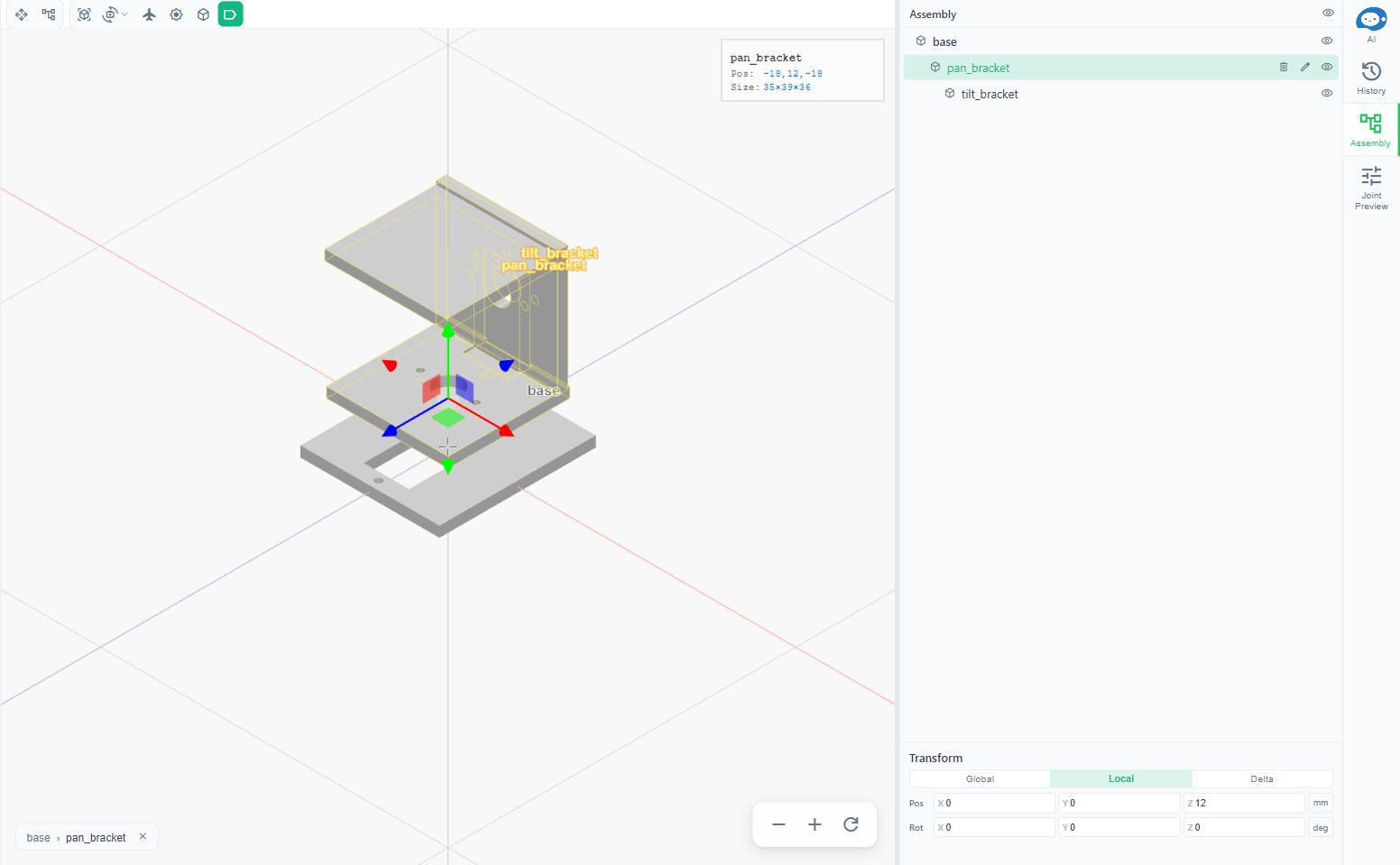
With several parts selected, the toolbar picks the pivot they rotate around: Median center, First selected or Last selected.
Edit has Select All (Ctrl+A), Deselect All (Esc), Invert Selection and Delete. Undo is Ctrl+Z and Redo Ctrl+Y. Right-click on the canvas for Undo, Redo, Delete and Deselect.
The Assembly tab
The Assembly tab on the right is the part tree. Each row can be hidden or shown, renamed or deleted. The breadcrumb at the top of the canvas shows which sub-assembly is open; click root to go back to the top.
Parts
The Parts tool opens the Parts panel: search the project's parts, or Import STEP (see Import and export).
Joint Preview
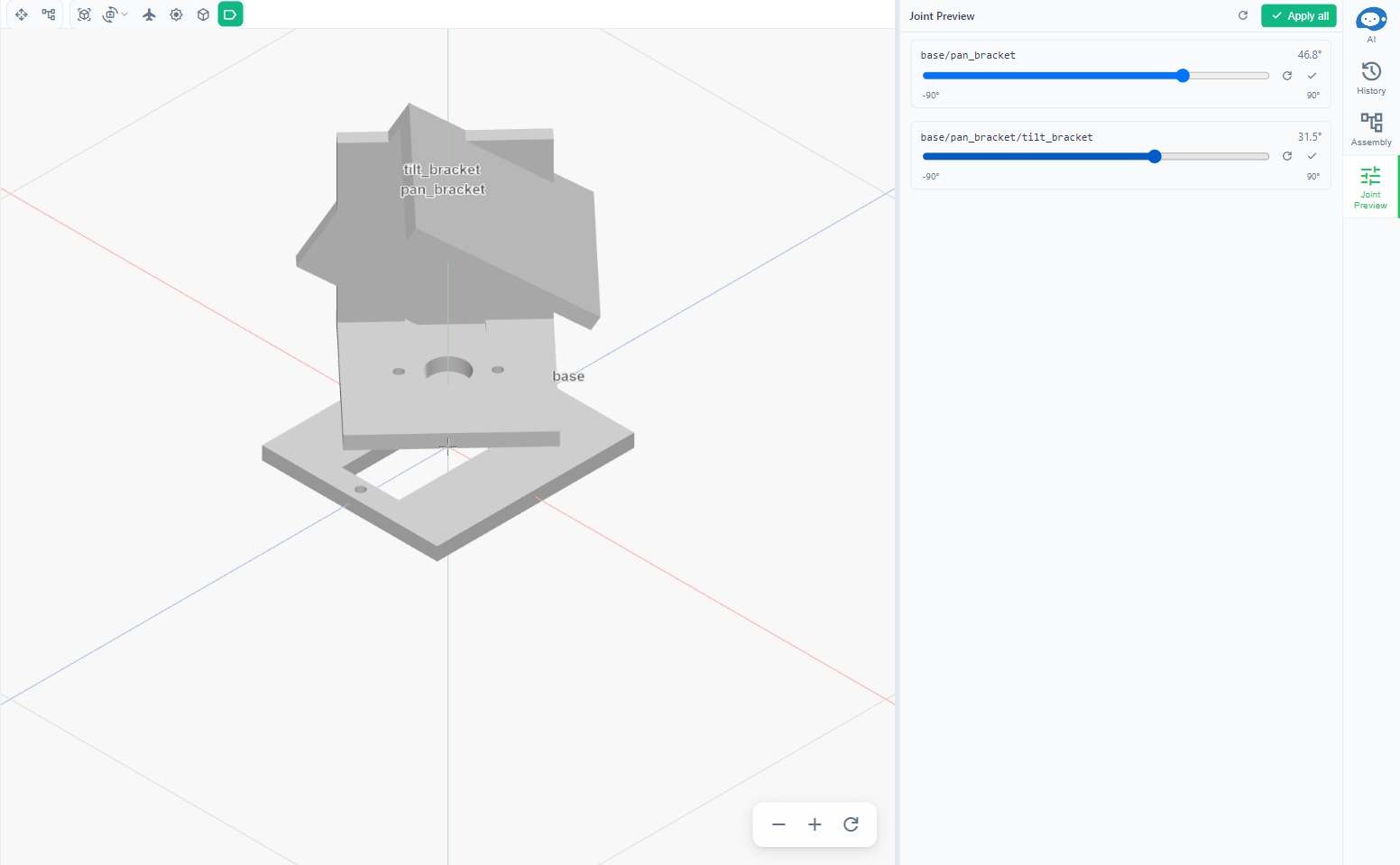
The Joint Preview tab has a slider for each joint, to try poses. Apply keeps one joint's pose in the assembly and Apply all to assembly keeps all of them; Reset and Reset all drop them.
Saving
File has Save (Ctrl+S), Save As… and Save a Copy…. If the assembly was changed elsewhere at the same time, a banner asks whether to Keep mine or Discard mine.