PCB
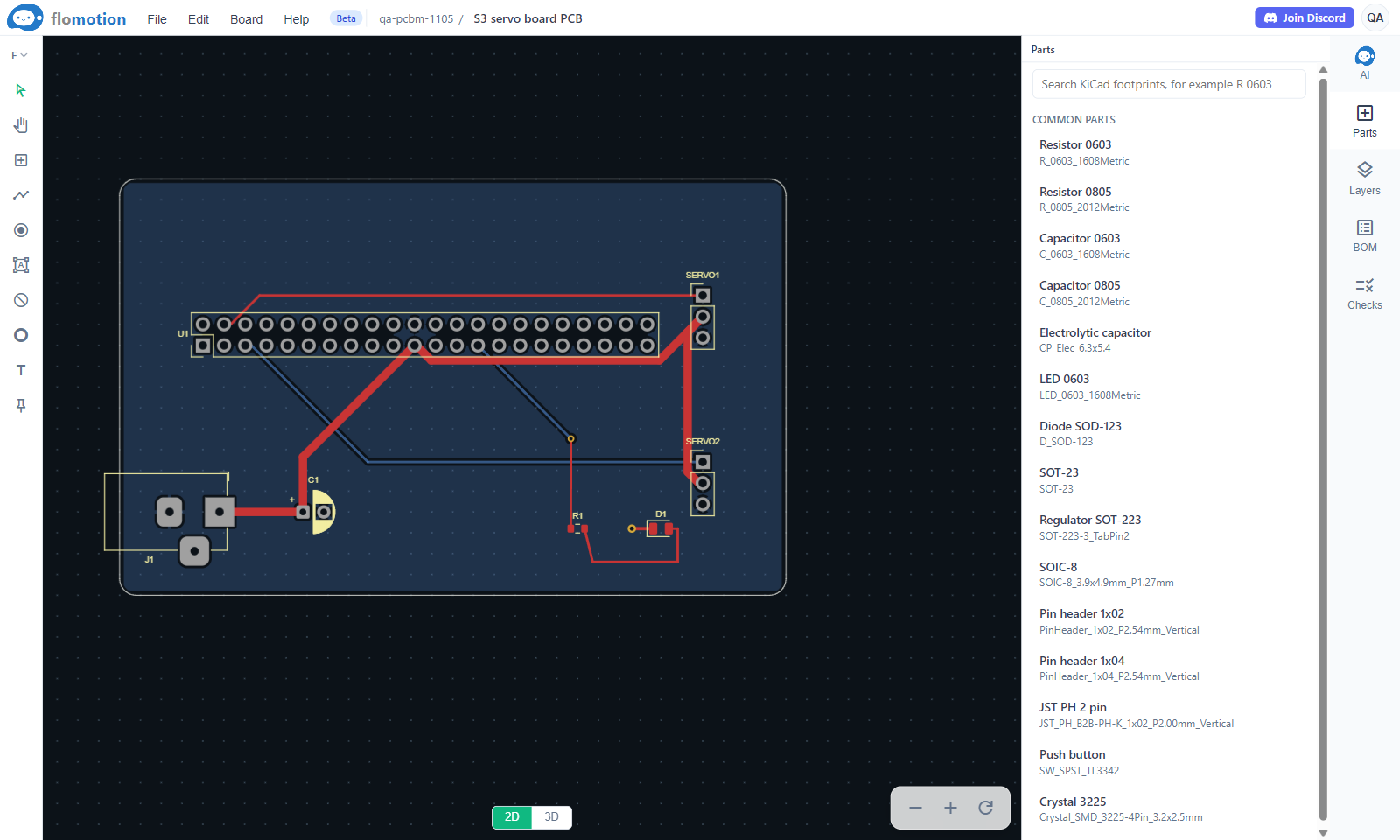
A PCB item holds one circuit board. It is stored as a KiCad 10 board file, so the same board opens in KiCad, and a board edited in KiCad loads back without losing anything. Most boards start from a schematic of the same project: its parts arrive as footprints beside the board and its nets as ratsnest lines between their pads.
The PCB designer is in beta. The agent can misplace parts or route a net wrongly, and errors in the designer itself can also make a board incorrect. Before ordering, check the board in KiCad and in the fab's own Gerber viewer.
The editor
- Tools on the left: Select, Hand, Place part, Track, Via, Zone, Keepout, Hole, Text and Note, with the Drawing layer above them. See Editing the board.
- Canvas in the middle, all layers drawn at once, the active one on top. The 2D/3D switch at the bottom shows the board with its 3D models, see 3D view and part models.
- Panels on the right: AI, Parts, Layers, BOM and Checks.
- Menus: File, Edit, Board and Help, listed below.
A new board shows Start the board: layer count, width, height, corner radius and, optionally, the schematic to build it from. Asking the agent works as well, for example "make a 60 x 40 mm 4 layer board from the servo schematic".
Menus
On a Mac, Ctrl is ⌘. Checks and exports are explained in Checks and export.
| Menu | Item | Shortcut | What it does |
|---|---|---|---|
| File | Load KiCad file… | Replaces the board with a .kicad_pcb (or a zip of one) edited in KiCad. | |
| Export… | Gerber, BOM and CPL, STEP, GLB and the KiCad project. | ||
| Close | Goes back to the project page. | ||
| Edit | Undo | Ctrl+Z | |
| Redo | Ctrl+Y | ||
| Delete | Del | ||
| Select all | Ctrl+A | ||
| Select connected tracks | U | ||
| Select none | Esc | ||
| Board | Fill zones | Fills every copper zone with KiCad. | |
| Run KiCad DRC | Checks the board with KiCad after a fresh fill. | ||
| Help | Contact Us | Opens a short form to message the team. | |
| Terms of Service | Opens the terms in a new tab. | ||
| Privacy Policy | Opens the privacy policy in a new tab. | ||
| Discord Community | Opens the FloMotion Discord server. | ||
| Reddit (r/FloMotion) | Opens the FloMotion subreddit. |
Right-click on the canvas, or a long press on a touch screen, opens a menu that follows the tool. With Select it acts on the part or track under the pointer:
- Rotate (R)
- Flip to other side (F)
- Lock or unlock (L)
- Delete (Del)
- Select connected tracks (U)
- Select all (Ctrl+A)
- Select none (Esc)
- Undo (Ctrl+Z)
- Redo (Ctrl+Y)
While a track, zone or keepout is being drawn, the menu has Finish, Cancel, Undo and Redo. With the other tools it has Select all, Undo and Redo.
Saving
Changes are saved to the server shortly after they are made. When the board was changed elsewhere in the meantime, for example in another tab, a banner asks whether to add the local edits on top of it (Keep mine) or drop them (Discard mine).
Limits
- Undo and redo keep the last 50 changes until the page is reloaded. A whole agent turn counts as one change.
- Vias go through every layer; blind, buried and micro vias are not available.
- Tracks do not push other tracks aside while drawing; the agent reroutes on request.
- LCSC numbers are not checked against stock or footprints, and part rotations can differ from JLCPCB's. Check the BOM and the placement preview on JLCPCB before ordering.
- The KiCad project opens in KiCad 10 or newer.