Pins, labels and sockets
October 15, 2026
How the parts of a circuit are connected depends on the stage of the project. This article goes from production back to the first breadboard build, then covers how FloMotion models breadboards, sockets and nets.
From production to prototype
Printed circuit boards. In production, parts are soldered to a printed circuit board (PCB), usually by machine. Each net is a copper trace or plane. A PCB is cheap per unit and reliable, but a design change needs a new board.
A PCB is also where fast circuits work. Its traces are short and sit over a solid ground plane, so circuits run at hundreds of MHz or more: USB, Ethernet, DDR memory. The cost is careful design, because at those speeds a trace acts like a transmission line and an antenna. Long traces and large current loops give off and pick up noise, and a mismatched trace reflects the signal back.
A breadboard is the opposite case. Its long jumpers and the stray capacitance between strips (a few pF per pair) round off fast edges and pick up noise, so in practice it tops out around a few MHz. That is fine for an Arduino with an LED and a button, marginal for fast SPI, and too slow for USB or radio.
Connectors. Parts that ship separately, such as a motor, a display or a battery, connect to the board through connectors, so they can be assembled and replaced. Connectors also carry the external interfaces: USB, power jacks, sensor cables. A connector has a male and a female half, and the pins connect when the halves are joined.
Hand soldering. A late prototype is often soldered by hand on perfboard (a copper pad per hole) or stripboard (holes joined in copper strips), with short wires for the connections. A chip without a matching board can be glued upside down and wired directly to its legs, which is known as dead bug wiring. Hand soldered builds are durable but slow to change.
Breadboards. Early in a project, parts are pushed into a solderless breadboard instead. Nothing is soldered, so a part can be moved or reused at any time.
Breadboards
A breadboard is a block of holes with spring clips underneath, and the clips are joined in strips. Breadboards usually come in two sizes: half size, with 30 columns and 400 holes, and full size, with 63 columns and 830 holes. Mini boards with 17 columns and no power rails are common for small circuits.

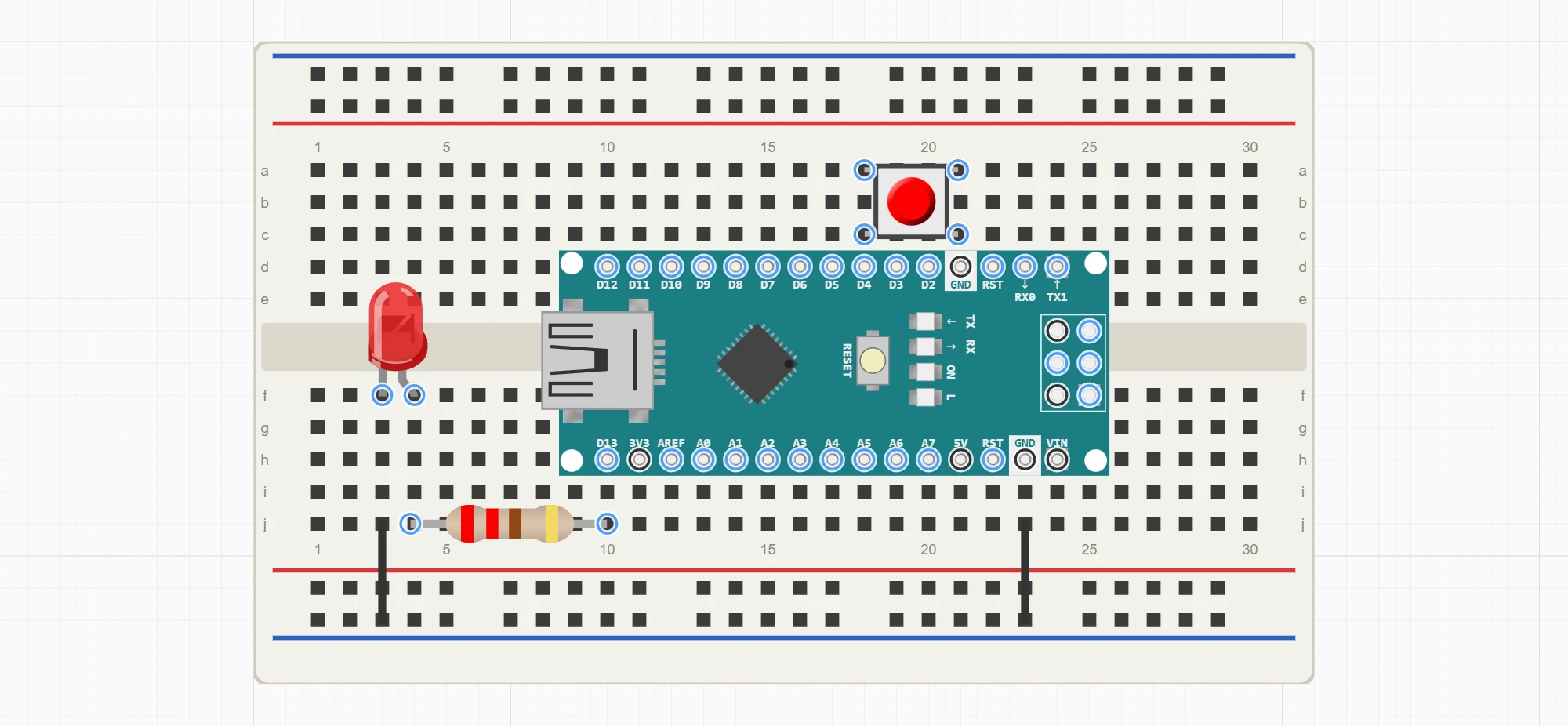
Holes are named by row letter and column number, from a1 to j30 on a half size board. In each column, a to e form one strip and f to j another, with a channel between them. A chip or a board with two rows of pins sits across the channel. The power rails along the edges are TP and TN (top plus and minus) and BP and BN (bottom plus and minus), with holes numbered along the board, such as TN1. Each rail is one strip. Two leads in the same strip are connected, and moving one a hole to the side disconnects it.
That makes a breadboard awkward in a schematic. A schematic records which pins are connected, not where the parts sit, and on a breadboard the position is the connection. Most electronics tools leave the breadboard out and leave the layout to whoever builds the circuit. Some keep a separate breadboard view in step with the schematic.
FloMotion draws both on one canvas. Pins that belong together form a net, and a socket is a pin that another part's pin plugs into, like the female half of a connector. A breadboard is a library part made only of sockets, in three sizes: mini, half and full. The holes carry the names above, and each strip and each rail is a single conductor inside the part. A part placed on the board plugs into the holes under its pins, so placing it is the same as wiring it, and the schematic is also the breadboard layout. The female headers of an Arduino Uno are sockets too.
Plugging a part in
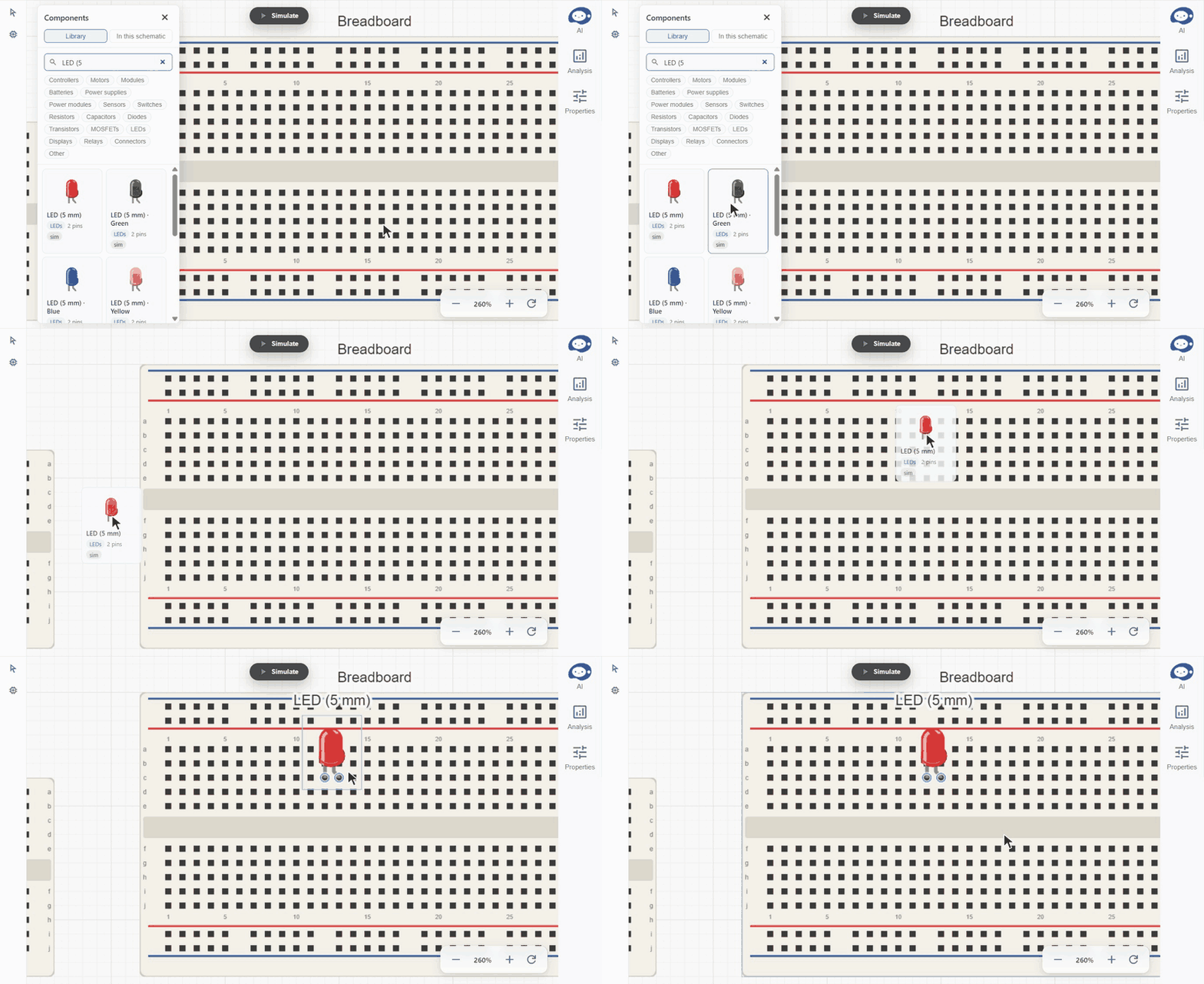
When a part is dropped from the library or dragged on the canvas, its pins snap onto nearby free sockets, so it lands on the holes rather than between them. A pin that sits on a socket is plugged in: the two join the same net and no wire is drawn between them. Dragging the part off again unplugs it, and the pin leaves the net. A socket takes one pin. When two pins end up on the same hole, the part placed first keeps it.
Some pins are connected inside the part itself, as the five holes of a strip are. Each rail runs the length of the breadboard, and the GND pins of a board are all the same ground. A pin plugged into any hole of a strip is therefore connected to everything else on that strip, and the nets that touch one strip merge into one. The merged net keeps the name of the first one and the strongest kind, so a strip that touches ground becomes ground.

Board headers work the same way. An LED plugged into D13 and the GND next to it on an Uno is connected without any wire, as it would be on the bench.
Where pins sit
A schematic part puts each pin where it suits the drawing or where it is on the real part. Every pin has a position on the part and one of three mounts.
- Edge pins sit on the outline of the part. The wire leaves the pin in the direction of that side. Most custom parts the agent creates use edge pins, since they suit a plain box with a pin row on each side.
- Onboard pins sit inside the outline, where the pin is on the real part: the header holes of an Arduino, the legs of an LED, the terminals of a motor driver. The wire runs straight to the pin rather than stopping at the edge.
- Sockets are holes that open upward. Another part plugs into them by placing one of its pins on the hole. Breadboard holes and the female headers of the Arduino Uno and Mega are sockets.
A board with pins underneath, such as the Arduino Nano, plugs into a breadboard like any other part. It straddles the centre channel, so each of its pins sits in a strip of its own. Pins that point up off the board, such as the ICSP header, are header pins: they are drawn like the other pins but never plug into a socket, so they do not connect to the holes under the board. The Uno and Mega have female headers instead and sit next to the breadboard, connected by jumpers.
Jumpers
On the bench, whatever the strips do not connect is joined with jumper wires, and the schematic draws it the same way. A net that reaches a breadboard hole is drawn as jumpers. Each one runs from one pin to the next in the order the net lists them, and a pin already joined to the previous one through a strip or a rail gets no jumper. An LED whose cathode sits in a strip therefore gets one jumper from that strip to the minus rail, and the board's GND gets another from the rail. Jumpers do not fork and have no junction dots. A jumper may cross the parts right next to its ends, such as the breadboard under the pin it starts from, and is routed around every other part.
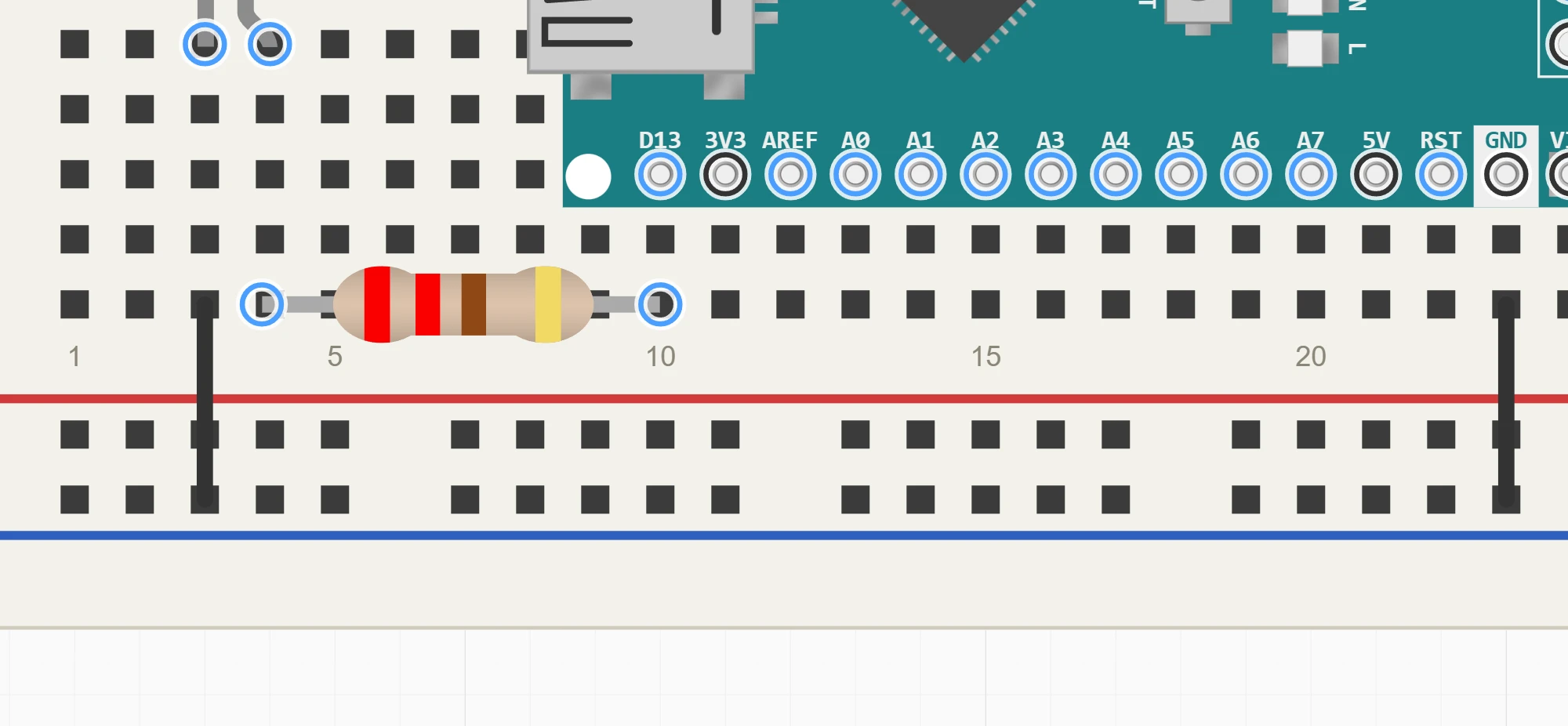
The breadboard is drawn under the other parts, and its holes are not highlighted as pins, so it does not get in the way when parts on it are selected. Part names are drawn above each part and can cover holes on a crowded board. The Part names toggle in the view toolbar at the top left of the canvas hides them.
Labels
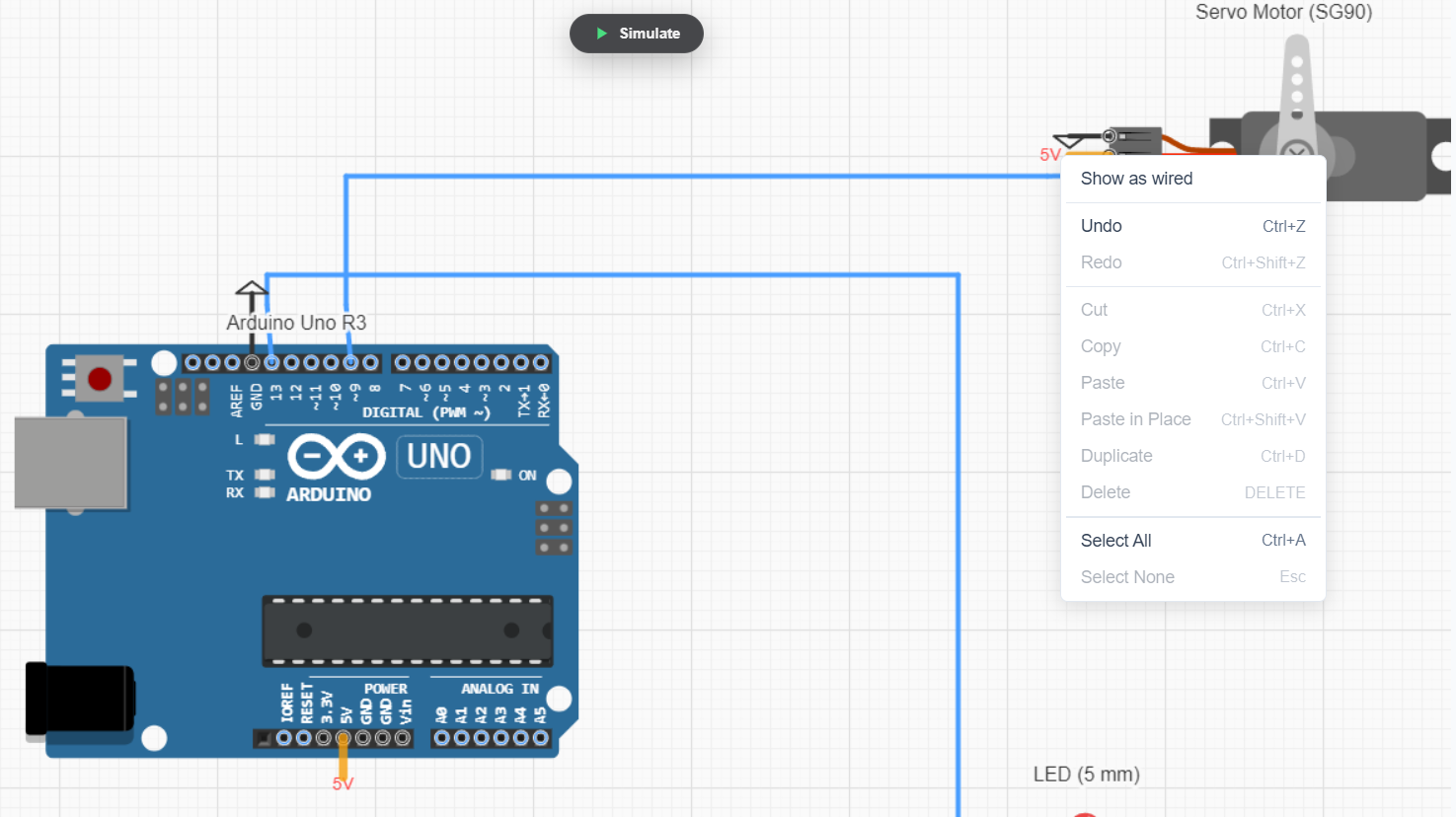
Away from the breadboard, a net with a few pins is drawn as wires routed between them. A net with many pins, such as ground or a supply rail shared by many parts, is drawn with a label next to each pin instead, which keeps the schematic readable. Ground labels use the ground symbol, and the ground pins on one side of a part share one symbol.
Any net can be switched between the two from its menu with Show as labeled and Show as wired. Labels change only how the net is drawn: the pins are connected either way.
Supply or signal
Besides its position, each pin has an electrical type: power output, power input, ground, or a signal type such as a digital pin, an analog input, PWM, I2C or SPI. The type sets the kind of the net the pin belongs to (ground, power or signal), which decides how the net is drawn and how the simulation treats it.
Power outputs can carry a current limit. The 5V and 3V3 pins of the boards in the library are rated at 0.5 A. A short between such a pin and ground shows up in the simulation as an overcurrent on the board rather than a reading of hundreds of amps. VIN is a power input, which matches its use for feeding the board from a battery or adapter.
Building on a breadboard with the agent
The agent places parts on a breadboard or a board header by position, the same way they are placed by hand. After each change to the schematic it gets back which pins were plugged in, which were unplugged and which nets were merged by a strip.
When the agent connects a pin to a breadboard hole without placing the part on that hole, the connection is drawn as a jumper, and the agent gets a warning that names the position that would plug the pin in. This catches the common case of a part that is meant to sit on the breadboard but ended up next to it.
Parts from the library already carry their sockets, header pins and strips. When the agent creates a part of its own that needs them, such as a board with female headers, it loads a skill that describes these pin kinds.
The agent can still place a part one column off, or plug two parts into the same strip by mistake. Checking which pins share a strip, and running the simulation, is worthwhile before building the circuit.
Limits
Breadboards only join the pins plugged into them. They have no behaviour of their own in the simulation and are left out of the KiCad export, where the parts on them are connected directly.
Summary
A circuit that still changes is built on a breadboard, where a part is connected by where it sits. A FloMotion schematic models this with one idea: pins that belong together form a net, and a socket is a pin that other pins plug into. Breadboards and board headers are parts made of sockets, so a circuit is laid out on the canvas the way it is built on the bench, and each pin's electrical type tells the simulation which nets are supplies, grounds and signals.
Try it yourself
Open the workspace, describe a part, and see what the agent does with it. No install, no setup. Sign-in is optional for the first run.
Start building