Measuring a simulated circuit: charts, spectrum and sweeps
October 18, 2026
On a workbench we are often interested in doing various measurements, like how much current an LED draws, whether the supply drops when a servo moves, or at what voltage a Zener diode starts to conduct. Each of these needs a different instrument. This article goes through those instruments, then shows how to take the same measurements on a simulated circuit in FloMotion.
On the bench
Four instruments cover most of these measurements.
Multimeter. The multimeter shows one number: the voltage between its probes, or the current through it when it is placed in series with a part. It is the quickest check, but a supply that drops for a millisecond still reads as steady.
Oscilloscope. An oscilloscope draws voltage over time. It shows what a multimeter misses: a short dip, ringing after an edge, the shape of a PWM signal. With a current probe, or across a small resistor in series, it shows current over time too.
Spectrum analyzer. A spectrum analyzer shows which frequencies a signal contains. Most oscilloscopes have an FFT mode that does the same. It helps find the frequency of a clock or a PWM signal when the shape alone does not make it clear.
Curve tracer. A curve tracer shows how a part behaves over a range of voltages, not just at one point. By hand this means stepping a bench supply and writing down the current at each step. Tektronix sold dedicated curve tracers from the late 1950s that draw the whole curve of a diode or transistor on a screen. Either way the supply has a current limit, so a diode pushed past its knee is protected instead of destroyed.
The Measure panel
In FloMotion these instruments are in the Measure panel, next to Parts and Properties beside the canvas. On a phone it opens as a half sheet at the bottom, so the circuit stays visible.
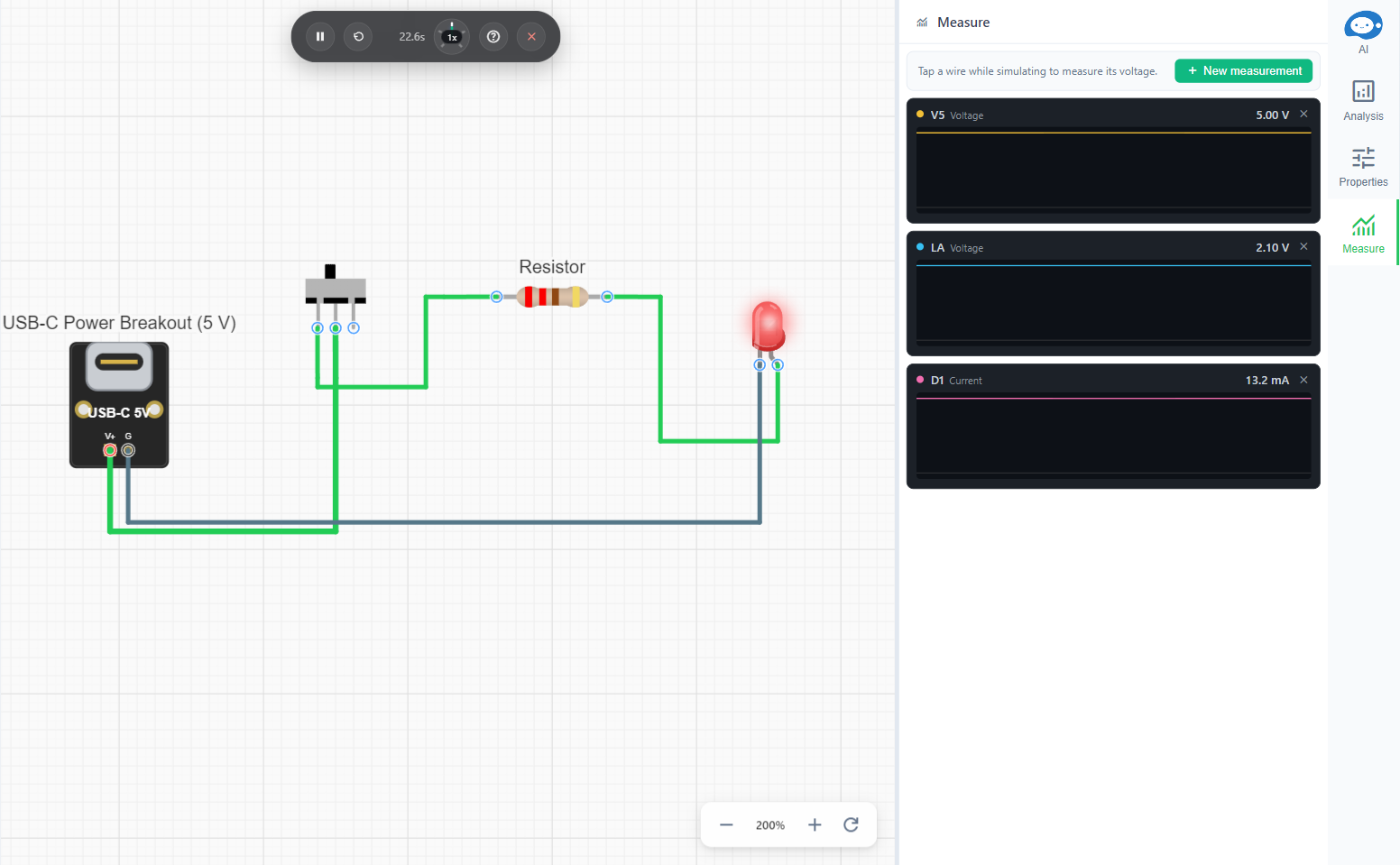
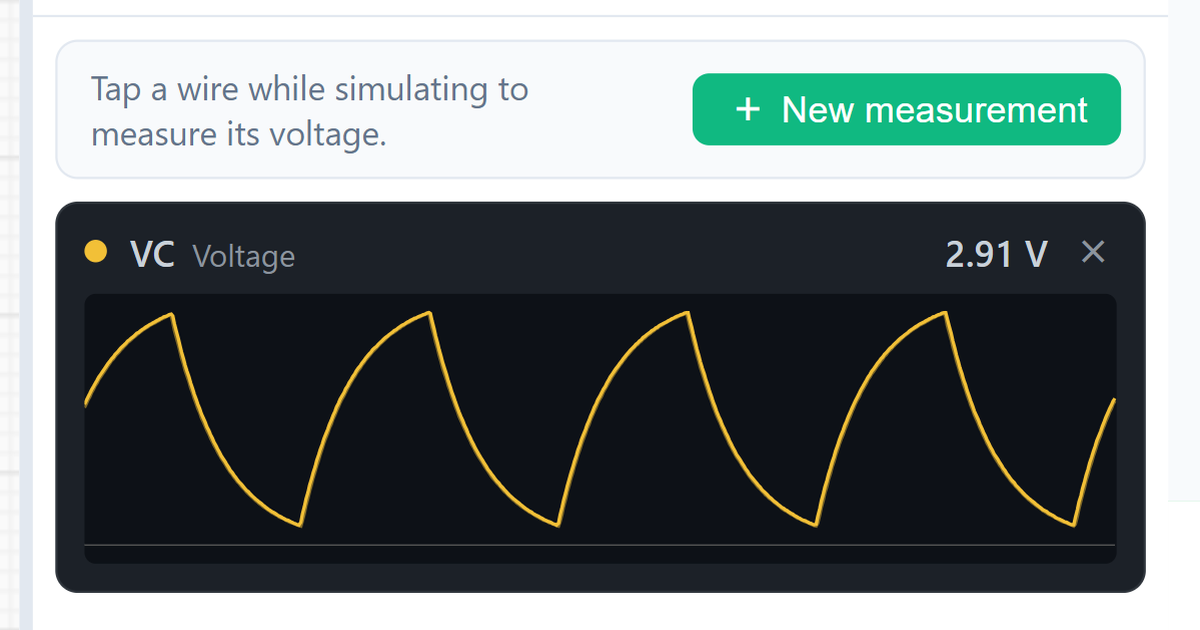
The quickest way to measure something is to tap a wire while the simulation runs. This adds a voltage chart for that wire and opens the panel. Tapping the wire again removes the chart.
For everything else there is New measurement, with three groups:
- Over time: Voltage of a net, Voltage between two nets, and Current through a part.
- Signal analysis: Spectrum, and Pulse, which measures one cycle of a signal.
- Sweep: Voltage vs current, and Voltage vs voltage.
Measurements are saved with the schematic and come back when the project is opened again. Each one has an id, M1, M2 and so on. The agent uses the same ids.
Picking inputs
Each measurement asks for a net, two nets or a part. Every input is a list, and next to it is a pick button to choose from the canvas instead, like placing a probe on a test point.
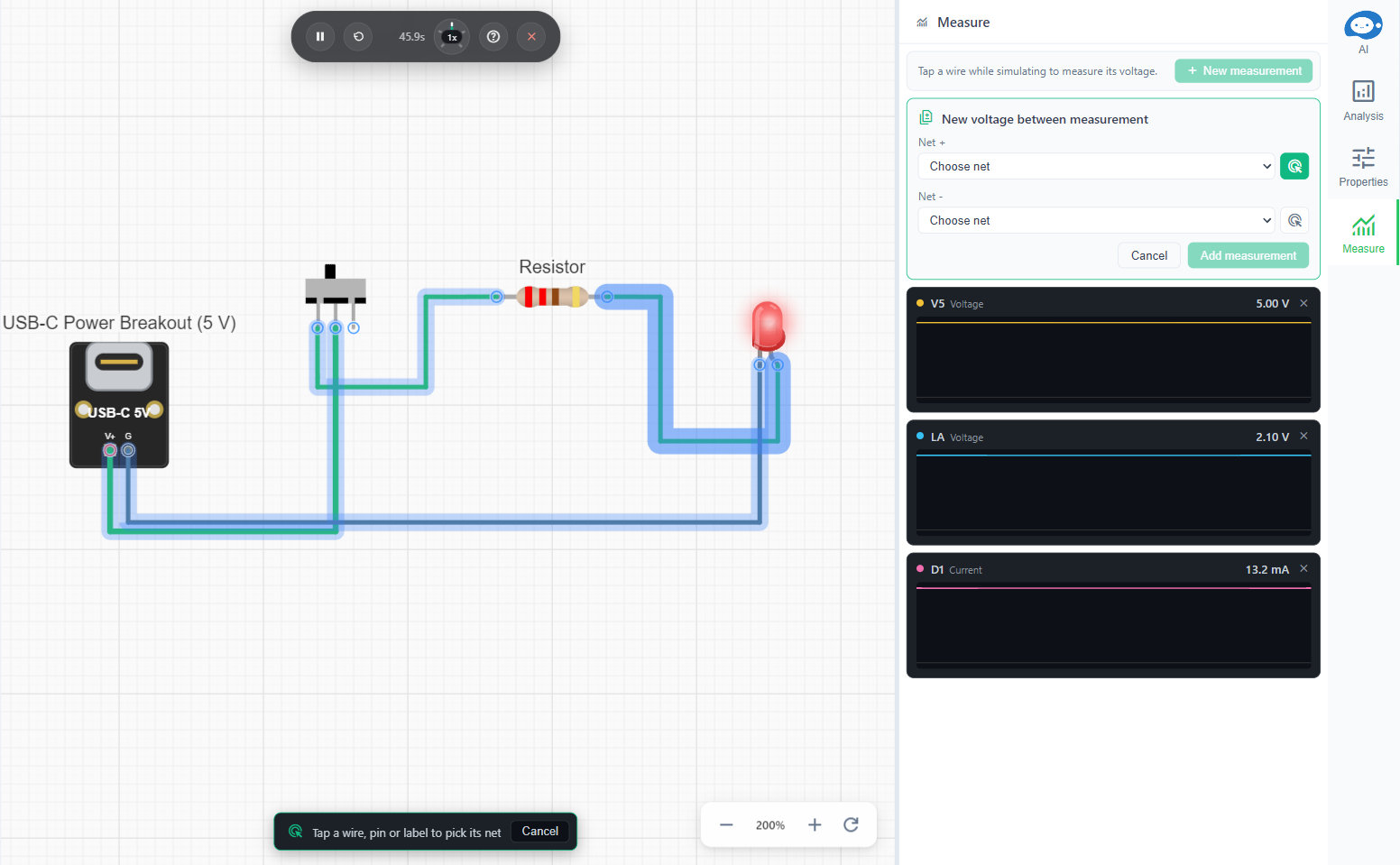
While picking, everything that can be chosen is highlighted: wires for a net, parts for a part. A bar at the bottom says what to pick, and Cancel or Esc stops without changing anything. Clicking a pin picks the net connected to it, which is often easier than hitting the wire.
Charts over time
Voltage, Voltage between and Current draw a chart while the simulation runs, like an oscilloscope. The card shows the latest value. The chart keeps the lowest and highest value of each sample, so a short spike stays visible even when zoomed out.
Voltage between is useful when neither side is ground, for example the drop across a resistor, the voltage on a motor, or the gate to source voltage of a MOSFET. Current shows what a part carries, so a missing series resistor shows up before anything burns out.
Spectrum shows the frequencies in a net, like the FFT mode of an oscilloscope. Pulse measures one cycle: high and low level, period, pulse width, duty cycle, frequency and number of edges.
Sweeps
Sweeps work like a curve tracer. A sweep steps the voltage between two nets, waits for the circuit to settle at each step, and draws the result.
Voltage vs current steps the voltage across a part and draws the current through it. Choosing the part fills in the two nets from its pins. Voltage vs voltage steps an input and draws the voltage of an output net. This shows the transfer curve of a divider, a transistor stage or a comparator.

The sweep above is a 1N4733A Zener diode, connected in reverse. No current flows until about 5.1 V. Then the current rises steeply, and the sweep stops at 5.24 V when it reaches the 20 mA limit. The 3.3 V 1N4728A stops at 3.50 V, and the 12 V 1N4742A at 12.18 V.
Sweeps run on a separate copy of the circuit. They work without starting the simulation and do not disturb one that is running. A progress bar shows while a sweep runs, and the refresh button on the card runs it again after the circuit changes.
The current limit
Every sweep has a current limit, 20 mA by default, and stops when it would have to supply more. This is the same as the current limit on a bench supply. Without it, a sweep past the forward voltage of a diode would push amps through it, and the curve would end in a burned part instead of showing the knee.
When a sweep stops at the limit, the card shows the voltage where it stopped. That number is often the useful one: the forward voltage of an LED at 20 mA, or the voltage a Zener holds at its test current.
Burnout during a sweep
A part can still burn out during a sweep, if its rating is below the limit or if current flows through another path. The sweep then stops, the card shows the curve up to that point, and a red line marks the voltage where the part failed.

Measurements and the agent
The agent uses the same panel. It can list, add and remove measurements. A measurement it adds shows up in the chat as a card that updates like the ones in the panel. When asked how a part behaves, it can sweep the part and read the knee or the voltage at the limit from the curve, instead of quoting the datasheet.
The agent can also read the results. A sweep runs again on the current circuit before the agent reads it, so after the agent changes a resistor the reading includes the change. Charts over time are read from the running simulation, or, when nothing is running, from the last simulation the agent ran.
Measurements are also a way to check the agent. If it says the LED draws 10 mA, a current chart on the LED shows whether that is true. The agent sometimes adds a measurement that already exists, or changes parts nobody asked it to change, so it is worth checking its edits.
For how the simulation itself works, see agent-generated circuit simulation.
Limits
- A sweep drives its two nets like a connected supply. If another part already drives them, such as a regulator on a supply rail or a microcontroller output pin, the sweep hits the current limit almost at once and the card says so instead of drawing a curve. The same is true on a real bench. A part behind a resistor, or two nets nothing else drives, sweep normally.
- Charts over time only have values while a simulation runs. The agent reads them from its last run, but a measurement added after that run stays empty until the next one.
- A schematic holds up to 20 measurements.
Summary
On a workbench a circuit is checked with a multimeter, an oscilloscope, a spectrum analyzer and a bench supply with a current limit. The Measure panel does the same for a simulated circuit: voltage and current over time, the frequencies and pulse shape of a signal, and sweeps that draw a part's curve up to the current limit or the point where it burns out. Measurements are saved with the schematic. The agent can add and read them too, which makes them an easy way to check both the circuit and what the agent says about it.
Try it yourself
Open the workspace, describe a part, and see what the agent does with it. No install, no setup. Sign-in is optional for the first run.
Start building