MJCF import and the MuJoCo Menagerie library
September 8, 2026
A control scene needs an assembly to simulate. Until now that assembly had to be a mechanics workspace built in FloMotion, part by part, which is a long way from a first simulation if the goal is to test a control loop on a robot that already exists. A scene can now start from a ready-made model instead.
The MuJoCo Menagerie library
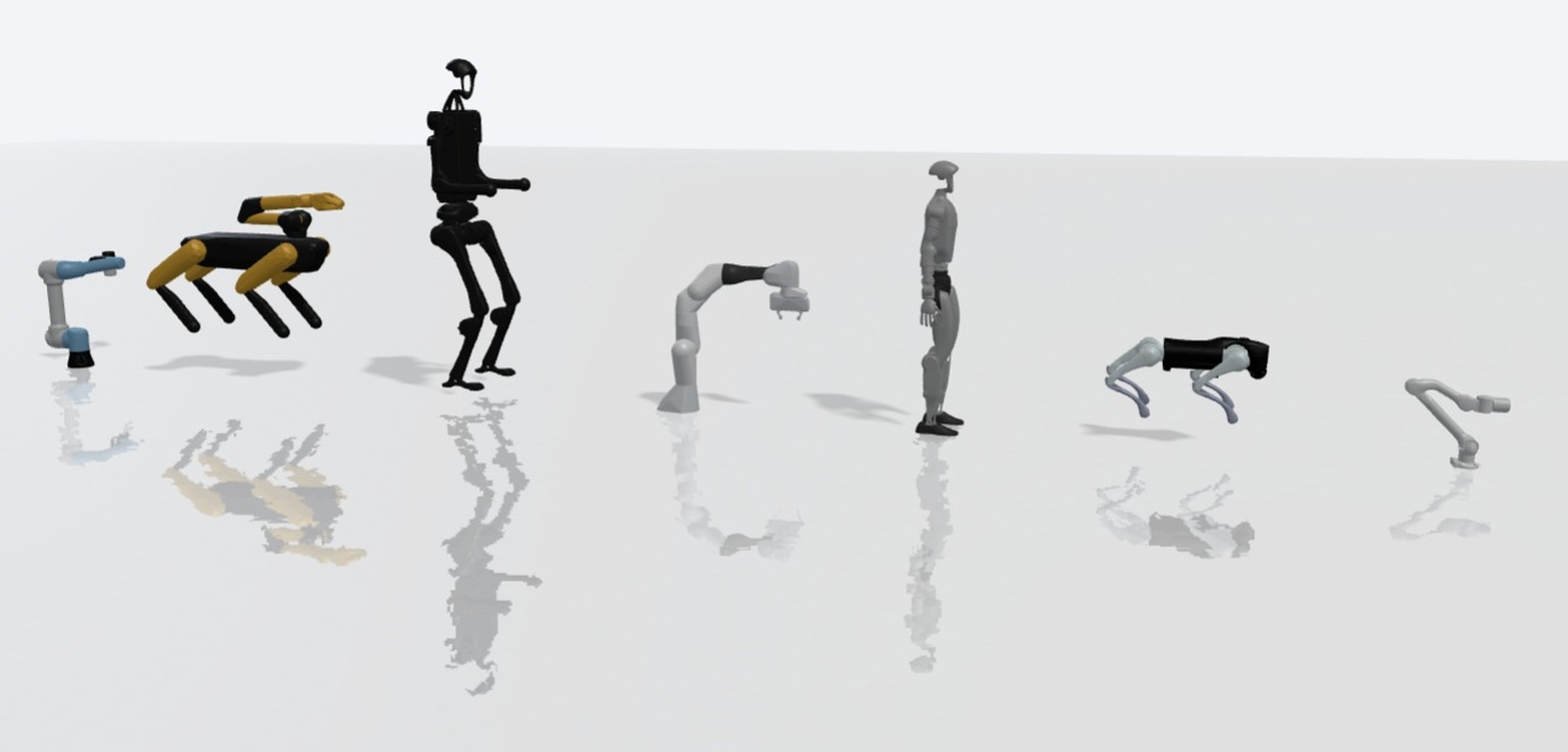
Creating a scene offers the MuJoCo Menagerie collection. These are models published by the robot vendors themselves, so the dimensions, joint limits and mass properties come from the people who built the hardware.
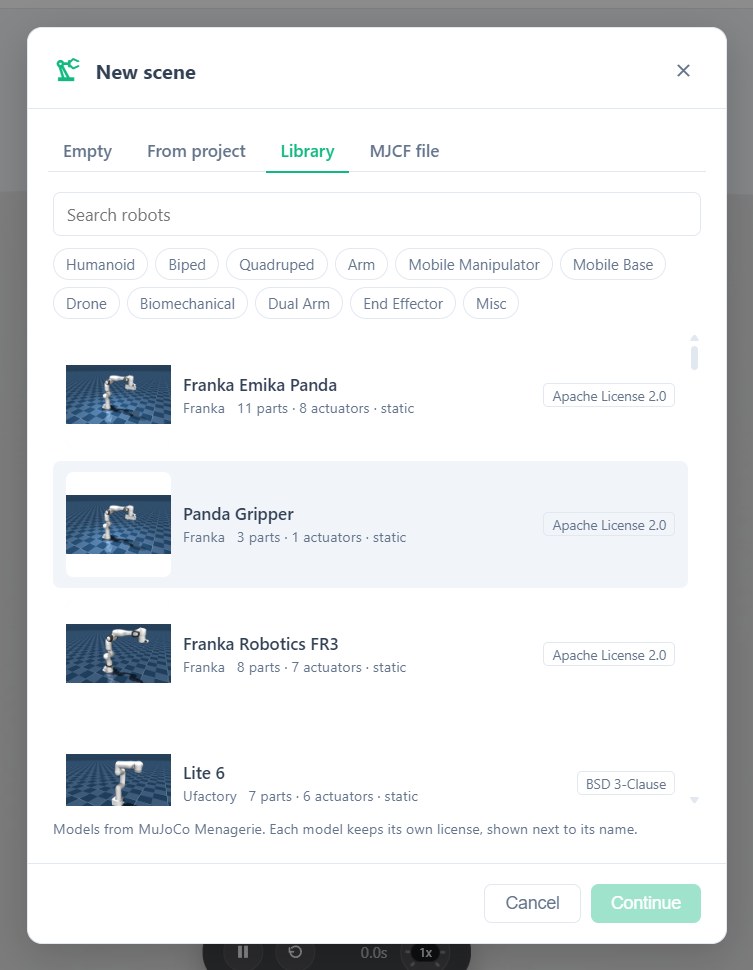
Each entry is tagged by type, vendor and degrees of freedom, so the list narrows to arms, or to one vendor, before searching by name. The entry shows its part and actuator counts, whether it is fixed or free-floating, and its license. Picking one copies it into the project as a mechanics workspace.
What the collection covers:
| Type | Examples |
|---|---|
| Arm | Franka Panda, UR5e and UR10e, Kinova Gen3, xArm 7, Sawyer |
| Gripper | Robotiq 2F-85, Panda hand, xArm gripper |
| Hand | Shadow Hand, Allegro Hand, LEAP Hand |
| Quadruped | Unitree Go2 and A1, Boston Dynamics Spot, ANYmal B and C |
| Humanoid | Unitree G1 and H1, Robotis OP3, Berkeley Humanoid |
| Biped | Agility Cassie |
| Drone | Skydio X2, Crazyflie 2 |
| Mobile base | Robot soccer kit (omnidirectional) |
| Mobile manipulator | Hello Robot Stretch, TIAGo, Stanford TidyBot, Google Robot |
| Biomechanical | IIT SoftFoot |
Uploading a MuJoCo model
Models that are not in Menagerie can be uploaded directly. The upload is a zip archive holding the model XML at its root and the meshes it references, since MJCF points at its meshes by relative path and they have to travel with it.
This covers an internal design, a modified Menagerie model, or anything else already described in MJCF. As with the library, the result is a new mechanics workspace in the project.
Both routes are also available from a scene's File menu, under Import assembly, so a scene that started empty can gain a robot afterwards.
What can be done with an imported robot
An import produces a mechanics workspace: parts, a structure tree, joints and actuators. Placed in a scene, it is driven by the same scene tools as any other assembly.
Inverse kinematics solves against the imported chain, so a target pose can be turned into joint angles without describing the robot first. Forward kinematics reports where a body ends up for a given pose. Both read the joint limits that came from the vendor.
Control scripts drive the actuators directly. A script written against an imported arm addresses its joints by name, and the simulation runs the same physics as any other scene. Trajectories can be recorded from a run and read back as data.
The assembly's physics can be edited after import. Joint ranges, actuator settings, mass and placement are all adjustable, which matters when a model needs constraining to a safe working envelope or retuning for a different payload.
Scene frames can be captured from any viewpoint, which is how an agent checks its own work visually.
How the geometry arrives
Each part carries collision shapes, which the physics and the agent read, and a mesh for display. The shapes approximate the original geometry as boxes, capsules and cylinders, which is what keeps the simulation fast.
Units and conventions are converted on the way in. MJCF is written in metres and FloMotion workspaces in millimetres, half-extents become full sizes, quaternions are reordered, and angles in radians become degrees where the model declares them.
An upload reports anything it could not translate exactly, as warnings rather than failures. Ellipsoid geometry becomes a bounding box, and tendon drives with no fixed joint ratios are dropped. A model that imports with warnings still simulates, and the warnings say where it differs from the original.
Joints and actuators
Hinge joints become revolute, slide joints become prismatic, and a free root joint marks the whole assembly as free-floating rather than bolted to the world. Joint limits come across in degrees, so an imported arm is constrained to the range its vendor published.
Actuators carry their control mode across, which decides how a command is interpreted:
- Position targets a joint angle or offset. This is a servo, and it is what most arm and humanoid joints use.
- Velocity targets a constant speed. Spinning wheels, propellers and conveyors.
- Motor applies torque or force directly. Drills, thrusters and direct drive wheels.
Two coupling shapes come across as well:
- Coupled drives move several joints from one actuator at fixed ratios, through a cable, tendon or linkage. This is how most grippers close several fingers from a single servo, and a negative ratio opposes, which is what mirrors a pair of fingers.
- Thrust applies force at a point with no joint at all, along an axis in the mounting body's frame. This is how drone rotors and jets work.
From an agent
The library is available to the agent directly. It can list the catalog and place a robot in one step, and the new workspace appears in the project tree as if it had been created by hand.
An upload needs the file itself, so it runs through the desktop app: flomotion import robot.zip hands the archive to the window, which imports it into the open project and returns the new workspace id. Small files travel inline and larger archives are read from disk, so a full robot archive is not a problem.
Licensing
Every model in the library is permissively licensed, under Apache 2.0, MIT or one of the BSD variants, and all of them require attribution. Each model's license is shown next to its name when picking one, and travels with the copy after import. Vendor names identify the models. Vendor logos are not licensed, and nothing here implies vendor endorsement.
What to check
The vendor numbers carry across, but a simulation is only as good as its assumptions. Joint limits, masses and actuator ranges are worth reading before trusting a result, and an upload's warnings say where the conversion approximated the original.
Try it yourself
Open the workspace, describe a part, and see what the agent does with it. No install, no setup. Sign-in is optional for the first run.
Start building